SPSS On-Line Training Workshop

SPSS On-Line Training Workshop |
|
In this Tutorial:
|
This is an overview of the SPSS program. In this clip we will discuss how to open an SPSS program, what items are in the SPSS menu bar, what you can do with the Data editor toolbar buttons and how to exit SPSS. The version for this online workshop is based on SPSS 16.0. To open SPSS, double click on the SPSS icon on the desktop (if there is one) or go to the start menu, programs, SPSS and click on SPSS 16.0.When you first log into SPSS this is the dialog box that opens up. You have several options; you can run the tutorial guide, get a blank data window and type in your own data, open the database wizard to import an excel file, open an existing SPSS file, or any other file such as the journal file. In this case we will open an existing file. Here, the rows are cases and the columns are the variables. Click on the following movie clip to see Overview
of SPSS: |
There are a number of different types of windows in SPSS. The window in which you are currently working is called the active window. Some of the frequently used windows are:
 | Data Editor Window: It displays the contents of the
data file. This is the window that opens automatically when you start an SPSS
session. In this window, you can create new data files or modify existing ones.
When you open more than one data file, each data file has a separate Data
Editor Window. The Data Editor Window provides two view of the data:
| ||||
| Viewer Window: It displays statistical results, tables, and charts. This window opens automatically the first time you run a procedure that generates output. | ||||
| Pivot Table Editor:
It displays the results in pivot tables. To open this window, right click on
the table, go to edit content and select “In separate window”.
Alternatively, left click on the table and go to Edit Menu. Select edit
content and then in separate window. You will be able to modify the table. |
| Chart Editor Window: This window is used to edit high-resolution charts and plots. |
| Text Output Editor Window:
This is used to modify text output that is not displayed in pivot tables. To
open the window, right click on the text output, go to edit content and
select “In separate window”. You will be able to modify the text output. |
| Syntax Editor Window: It displays the choices made in the dialog box in the form of command syntax. These commands can be edited and run to get some output. You can also copy an old SPSS program here and run it. |
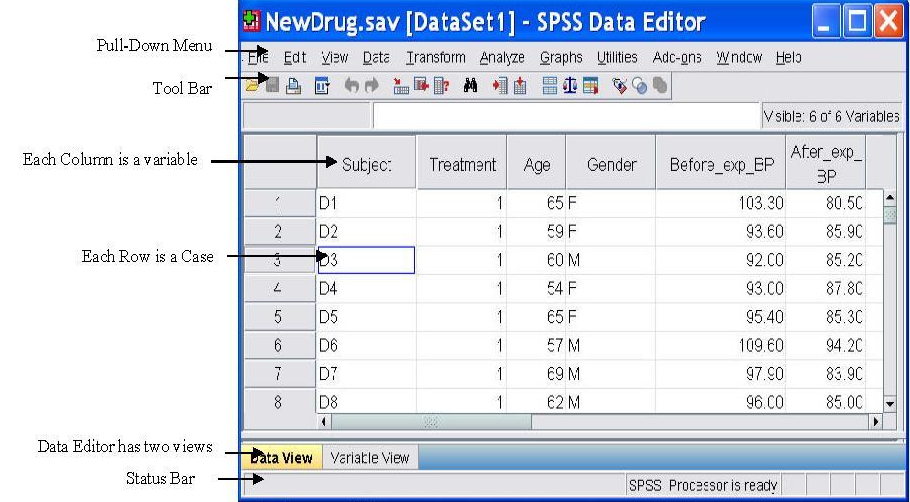 |
Many tasks in SPSS are performed by selecting appropriate "pull-down" menus. Each window in SPSS has its own menu bar with appropriate menu selections and toolbars. The Analyze and Graphs menus are available in all windows. Here are some Data Editor window menus and their uses:
| File Menu:
From the file menu you
can open several different existing files or a database file such as an
excel file or read in a text file. You can also save any changes to the
current file. |
| Edit Menu:
from the Edit menu,
you can cut, copy, paste, insert variables, insert cases, or use find in the
Data Editor window. |
| Data Menu:
The data menu allows you to
define variable properties, sort cases, merge files, split files, select
cases and use a variable to weight cases.
|
| Transform Menu:
The transform
menu is where you will find the options to do some computations on
variables, to create new variables from existing ones or recode old
variables. |
| Analyze Menu:
The analyze menu is where all
statistical analysis takes place. From descriptive statistics to regression
analysis to nonparametric tests. |
| Graphs Menu:
The graph menu is where you can
create high resolution plots and graphs to be edited in the chart editor
window or you can create interactive graphs. |
| Utilities Menu:
The utilities menu is used to
display information on the contents of SPSS data files or to run scripts. |
|
Add-Ons
Menu: From the add-ons menu you can run other packages like conjoint,
classification trees, or Neural Networks. Also there are programmability
extensions that allow you to integrate programs like R and Python into SPSS.
But you should keep in mind that if you want to run any of the add-ons
listed here you will have to purchase them separately. |
| Window:
From the window menu you can
change the active window. The window with a check mark is the active one. In
this case it is the data editor window. |
| Help: The help menu allows you to get help on topics in SPSS or to ask the statistics coach some basic questions. |
Each window in SPSS has its own toolbars that provides access to common tasks. Some windows have more than one. When you put the mouse pointer on a tool, there is a brief description of what the tool does. You can show, move or hide a toolbar.
The status bar is at the bottom of each SPSS window and provides the following information:
| Command Status: gives information about a procedure that is running. |
| Filter Status: Filter On shows when a subset of cases in the data is used for analysis. |
| Weight Status: Weight On indicates that a weight variable is being used in the analysis. |
| Split File Status: Split File On indicates that the file has been split into separate groups for analysis. |
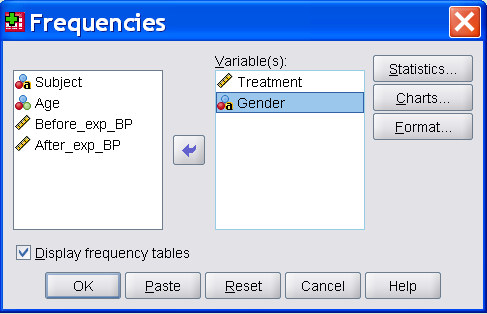
Many menu selections will open dialog boxes. In these dialog boxes, you select variables and options for analysis. The main dialog box in any statistical procedure has the following parts:
| Source variable list: A list of variable types (allowed by the procedure) from the working data file. | ||||||||||
| Target variable lists: One or more lists of variables needed for the analysis. | ||||||||||
| Command push buttons: Buttons that can be used to run the procedure by opening a subdialog box to make additional specifications. Some of the push buttons are:
|
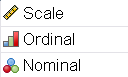
In a dialog box with source variables, the graphic symbols below represents the type of data measurement. In the symbols, character variables are indicated by letter a. Both interval and ratio measurements are represented by Scale. Note that the variable Gender in the above dialog box is nominal with 'alphanumeric' data values.


©This online SPSS Training Workshop is developed by Dr Carl Lee, Dr Felix Famoye and student assistants Barbara Shelden and Albert Brown , Department of Mathematics, Central Michigan University. All rights reserved.


 MOVIE: Overview of SPSS