In this Tutorial: |
Regular graphs can be obtained in two ways.
This is illustrated with the Math Assessment data set. |
| In this Tutorial: |
Regular graphs can be obtained in two ways.
This is illustrated with the Math Assessment data set. |
Creating a Regular Bar Chart
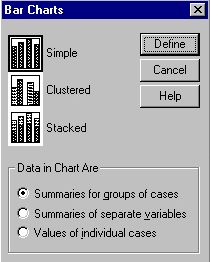 First,
you must choose the specific type of
chart (Simple, Clustered, Stacked) and how your data is presented in that chart. First,
you must choose the specific type of
chart (Simple, Clustered, Stacked) and how your data is presented in that chart.
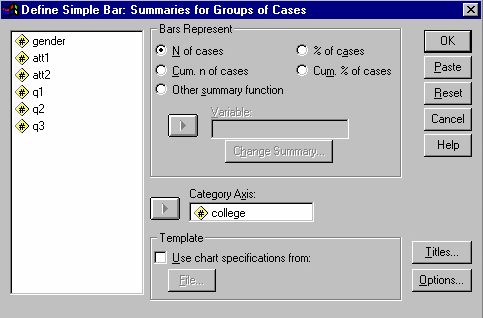
You must select the variable that you are going to use to define your slices. (College is chosen in this example.) Changes can be made to the other default choices, if you desire. Click OK. |
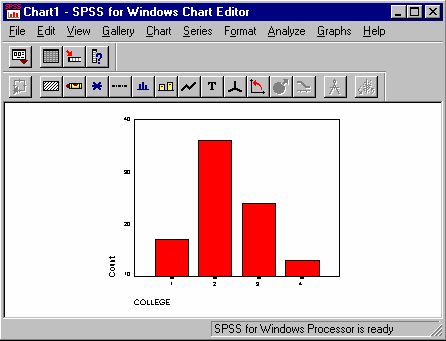 To edit a
regular graph, double click on the graph, a "CHART EDITOR" window appears. To edit a
regular graph, double click on the graph, a "CHART EDITOR" window appears.
By clicking on a part of the graph, that part of the graph is highlighted by a box. You then go to one of the menus to select the appropriate function and enter the required information, or you can choose the shortcut icon right under the Menu Bar to do the same editing. Here are some examples. To add a title to a regular graph: Go to Chart Menu, select "Title" and enter the title, then click ok. To change the color of a regular bar chart: Click on any colored box (by default, it is Red), go to Format Menu, select Color, choose the color, say blue, click "Apply". The entire bar changes to blue color. |
The Chart Editor window consists the following menus:
 | File Menu: allows users to save a template or export a graph. |
| Edit Menu: allows user to copy chart or change options. |
| View menu : shows status bar or tool bar. |
| Gallery: consists of different types of charts that are available. |
| Chart menu: consists of functions for editing title, footnote, legend, axis, frames and so on. |
| Series menu: for displaying and transposing serial data. |
| Format menu: consists of functions for editing graph styles, colors, patterns and so on. |
| Analyze menu: consists of available statistical procedures. |
| Graph menu: consists of available graphs and charts. |
| Help menu. |