SPSS On-Line Training Workshop |
 |
SPSS On-Line Training Workshop |
|
 In this Tutorial:
|
In SPSS, the results from running an analysis are stored in the Output Window. Similar to other SPSS windows, it consists of a menu bar at the top of the screen, a toolbar with shortcut icons below this, and a status bar at the bottom of the screen. The main body of the Output Window consists of two panes (Left and Right Panes). The left pane has an outline of the output. The right pane has the actual output.
For example, the Output Window will store all
graphs and charts that you request. In the left pane of the output window
(the index pane), a graph is indicated by the symbol The following two movie clips demonstrate the Output Window: |
In this on-line workshop, you will find many movie clips. Each movie clip will demonstrate some specific usage of SPSS.
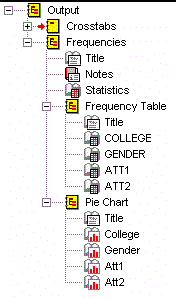 |
This contains the output index table. By clicking at any listed index, the right pane will move to the corresponding result content. The index has several layers:
In the front of each index is a book-like icon. An open book icon indicates the results are shown in the right pane. Double clicking on the open-book icon, it turns into a closed-book icon. The corresponding results are then hidden in the right pane. (In this output, only the “Notes” has a closed book icon.) |
This contains the result of your analysis or request for graphs. You can scroll with the screen scroll bar on the right-hand side to see your results. Or you can use the Left Pane index table to locate a specific part of the results.
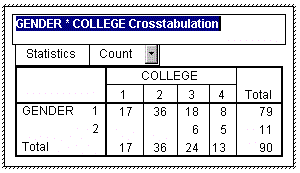 |
To edit the output, you simply double click on the specific output that needs editing. A pivot table appears with dashed line around the text. You can make any editing inside the text table. On the left is a pivot table for college and gender, ready to be edited. The column width has been reduced. The title is highlighted so that it can be changed to something that one may want in a printed output. After finishing the editing, click on any place outside the pivot table to remove the table from edit mode. |
 |
To print/save the
output, go to the FILE Menu, choose “print” or “save” to print or save your
output. Only those items that are not hidden in your output will be printed.
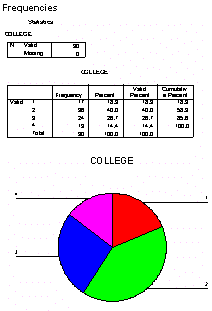
However, all the output will be saved. Before printing, you may choose “Page Setup” from the FILE Menu to set up your printing format, or you may request a print preview to see how your output is going to print. (On the left is a print preview of the Math Assessment Data which is analyzed to obtain frequencies for College.) |


This online SPSS Training Workshop is developed by Dr Carl Lee, Dr Felix Famoye , student assistants Barbara Shelden and Albert Brown , Department of Mathematics, Central Michigan University. All rights reserved.

 . Legacy Dialog graphs have the name “Graph”
while the Interactive graphs have the name “Interactive graphs”. Both graphs
can be edited in the Chart Editor Window.
. Legacy Dialog graphs have the name “Graph”
while the Interactive graphs have the name “Interactive graphs”. Both graphs
can be edited in the Chart Editor Window. MOVIE: Output Editing and
Printing
MOVIE: Output Editing and
Printing 